
Hello everyone, in this article, I will introduce the basic usage of Markdown, including editor selection, editting, and a summary of keyboard shortcuts.
ATTENTION, the .md teaching text is below the article, which is availble for downloading(no virus indeed (^‿^))
The Green Texts are Links!!!
Editors to choose
First of all, you have to choose an editor to support your markdown editting.
I myself use Typora so far, which is a powful tool for markdown editting. And you can visit the official website to buy typora or you can try to download the free resources of older versions(u know, I can’t propagate any info about the unofficial resourece but hey, (¬‿¬), just try, and you’ll find).
I also use VS code often for some coding work and sometimes I use it for text editting too. You can visit the website to download VScode compatible with your operating system for free. And don’t forget to download some plugins (Markdown All in One, Markdown Preview Enhanced, Prettier – Code Formatter, Markdown PDF)
Both are powful and highly recommend!
1. Text
Now that we have get a powerful editor, let’s explore Markdown.
It’s not that using Markdown makes you superior, but compared to other formatting methods, it’s more concise and efficient.
1.1 Heading
If you want to add a heading for your page, you can just:
- # this is your Heading_1
- ## this is your Heading_2
- …
- ###### this is your Heading_6
Attention! Markdown is compatible with html which is a powful tool for text editting.
If you want Heading_7 (which is not approved in editors), you should add something into the css file of your editor or website.
For example, if you want to add the style of heading_7 to your text with Typora or Vs code, you have to firstly find the css file in ~\Typora\resources\style.
Then it’s time to add your own style into the css:
h7 {
  font-size: 0.9rem;/*the size of your heading*/
  font-weight: bold;/*the thinner or fatter*/
  margin-top: 1em;/*the distance between your styles*/
  display: block;/*the way your styles diaplay*/
}After that, it’s easy to add your heading_7 into Typora or vs code with HTML(which is compatible with md):
<h7>this is your Heading_7 </h7>1.2 list
No matter writing articles or finish your work, a clear structure for your text is helpful.
Then it’s time for lists to work:
- unordered lists:
<!--use "Tab" to get the sublists-->
- list_1
  - list_2
    - list_3
      - list_4
        - list_5
- list_6- ordered lists
<!--don't forget the "space" after the "1.";press "enter" to get to the next list-->
1.
2.
3.
<!--use "Tab" to get the sublists-->
1.
  1.
  2.
<!--Maybe the lists can be expanded to a tree?-->- task lists
- [ ] unfinished
- [x] done
- [ ] to do
- the codes in lists:
1. First of all, download VScode and Anaconda
2. Then get some plugins for python
3. Creat a visual environment for your project and activate it
4. Add dependencies:
 ```bash <!--the language of your code-->
conda install numpy pandas
 ```
5. You can program your item now!1.3 Mathmatical applications
Whenever you have to write math euqations and formulas in your article, markdown won’t let you down.
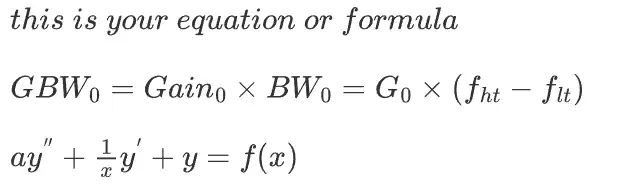
I’ll give you some examples.And the rendering result is down below.
in-line formula or equation(Latex-style)
"$ $"
$this \space is \space your \space equation \space or \space formula$

examples:
$GBW_0 = Gain_0 \times BW_0 = G_0 \times (f_{ht} - f_{lt}) $
$ay^{''} + \frac{1}{x}y^{'} + y = f(x) $
...
block formula or equation
$$
this is your formula or equation
$$

"Ctrl" + "L Shift" + "M" ==> add a formula block
"//"can be used to execute a line break

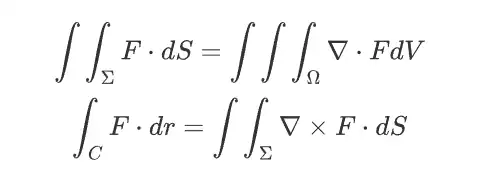
example:
$$
\int\int_\Sigma F \cdot dS=\int\int\int_\Omega \nabla\cdot FdV
\\
\int_C F\cdot dr=\int\int_{\Sigma}\nabla\times F \cdot dS
$$
...
Additionally, if you are familliar with Latex editting, then it maybe easier to get down to the codes. But we are not super man that can memorize anything without forgetting it. In that way, we should try to look up online to find the detail of the mathematical expressions of Latex. There are so many tools that can help you like Google, Bing, ChatGPT, Gemini, Colipt and so on. And honestly, I wish that I can help you too.
1.4 Missing details
1. **This text is in boldface** "Ctrl"+"B"

2. *This text is in italics*  "Ctrl"+"I"

3. `this is an in-line code`

4.
```bash
this is code block(in/off line)
```

5. <br>break line inside a row<br>

6. <div style="page-break-after: always;"></div> a page-break choice for exporting 2. Table
Traditional tables
Tables are common in our daily resources, and I’ll show you the basic operations of md tables.
This is an example of simple table:

| **Parameters and Metrics** | Dark           | Light          | Powful Light   |
| -------------------------- | -------------- | -------------- | -------------- |
| $n$                        | 1.280          | /              | /              |
| $V_{on}/V$                 | 0.4            | /              | /              |
| $R_{s}/\Omega$             | 10.39          | /              | /              |
| $I_R/A$                    | $1.48*10^{-8}$ | $5.28*10^{-4}$ | $7.08*10^{-4}$ |
| $V_{oc}/V$                 | /              | 0.41           | 0.44           |
| $J_{sc}/A/cm^2$            | /              | -0.005621      | -0.007346      |
| $I_{max}/mA$               | /              | -0.402         | -0.477         |
| $V_{max}/V$                | /              | 0.28           | 0.32           |
| $P_{max}/mW$               | /              | 0.1128         | 0.1527         |
| $P_{in}/W/m^2$             | /              | 110            | 170            |
| $PCE$                      | /              | 11.4%          | 9.98%          |
| $FF$                       | /              | 0.5427         | 0.7359         |

1. | colume_1 | colume_2 | colume_3 |
2. |:-----:|:-----|-----:| text-align:centred/left/right
...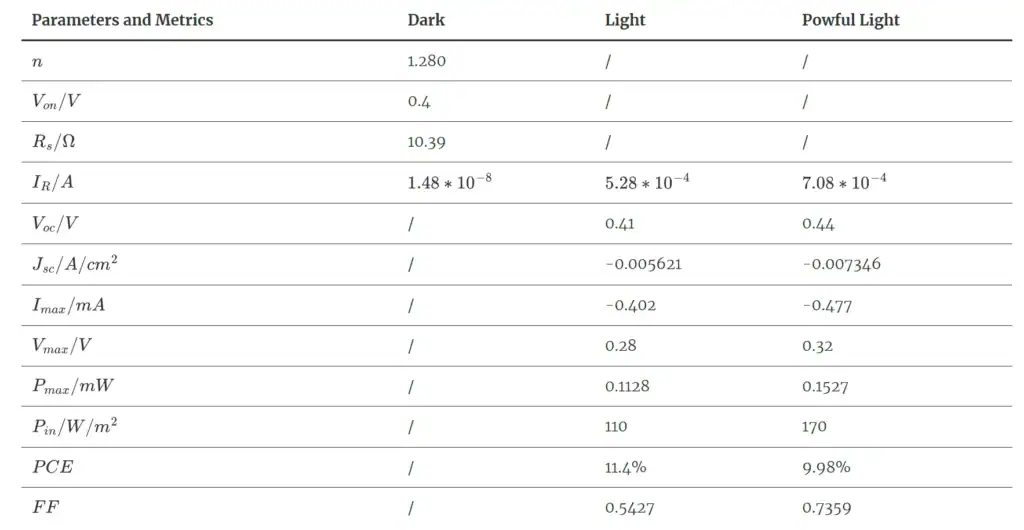
As you can see in my example, the mathematical lines can be smoothly added into the table.
And in fact, there are plenty of useful farmatting options which may not be so prevalent in our daily life.
ATTENTION please! You can change the .css of your vscode or typora to get better rendering of your tables!
Merging columes or rows
Markdown itself doesn’t support merging rows or columes in a table!
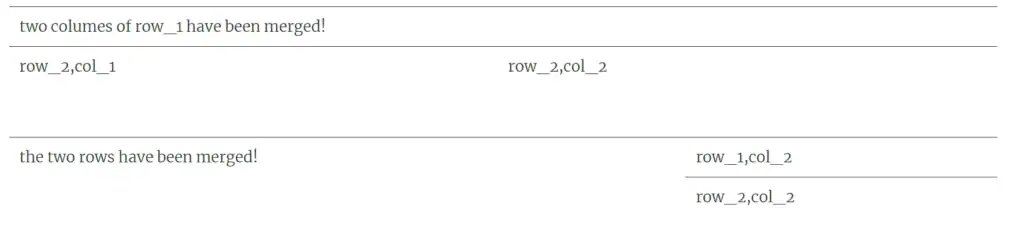
If you insist on merging your table to get better result of your work, then HTML can help you with that.(It may be a little complex)
/*merge cols*/
<table>
  <tr>
    <td colspan="2">two columes of row_1 have been merged!</td>
  </tr>

  <tr>
    <td>row_2,col_1</td> <td>row_2,col_2</td>
  </tr>
</table>

/*merge rows*/
<table>
  <tr>
    <td rowspan="2">the two rows have been merged!</td>
    <td>row_1,col_2</td>
  </tr>
  <tr>
    <!-- no row_2,col_1! <td> -->
    <td>row_2,col_2</td>
  </tr>
</table>Down below is the rendering result, but it seems not so perfect? Yeah, we can adjust the text-align by html.(Hint:just give a label of html)
All in all, markdown covers a majority of our need for tables. If you are facing a difficulty that can’t be solved with md, you can try HTML instead!
3. Images
Insert an image
Having images to insert into your article?
If Typora, just “Ctrl”+”C”==>”Ctrl”+”V”;
If Vs code, you have to get use of the code down below:

The path of your images can be:Local path, relative path or URL
You would find your local and relative path of your image by checking the properties of your imageAdjust your image
If you have to adjust the size of your screenshots or some other images, without using professional solfware, it’s convenient to use html codes to achieve that:
<p align="center"> the position of your image
  <img src="./assets/pic3.png" width="300"> the width of your image
</p>4. File exporting
We cannot assume that everyone uses md, but we can export markdown text into other kinds of formats like PDF, word, Latex, HTML and so on.
So how?
To begin with, if you have download VS code or Typora, or some other editors for md, it’s easy to achieve that.
VS code users should download some plugins as the ones I have mentioned at the beginning of my article. Just Right-click your md_text inside VS code editor, then you will find items like:”Markdown PDF:…”. That’s where you’ll export your md as PDF.
Typora users can find “export” in the menu on the leftside of the editor. Left-click it, just choose whatever format you want to export into.
Typora itself covers a majority of formats you may need!
Then are there any other ways to get your files exchanged into other formats? Obviously yes. There are powerful tools pandoc, Obsidian, and some useful weisites that can help you exchange your .txt and .md into the format you may need. Just try, and I would write an article about format exchanging in the future.
Soon~~~!
Any question? Just leave your comments and I’ll request as soon as I can.
All the best~!
Hi, this is a comment.
To get started with moderating, editing, and deleting comments, please visit the Comments screen in the dashboard.
Commenter avatars come from Gravatar.